
Capture, Record, Auto-PolishAll in One Tool

Still juggling 3 tools for screenshots, GIFs, and recordings?Clipio does it all, with AI editing, auto-zoom, and one-click sharing.

The beta for Mac and Windows, every feature unlocked, free while it lasts.
Record anything you work in

FigmaCanvaMiroGoogle DocsNotionAdobeSunoSlackGitHubYouTubeFramerGoogle SheetsWebflowTrelloJiraZoomExcalidrawDaVinci ResolveBlenderLinearObsidian

Three capture tools.
Three real editors.

Every capture opens in an editor built for it.

Grab any area, window or page

Then annotate, blur and frame it in seconds.

  • Annotations
  • Blur & redact
  • Auto Frame
  • OCR

Capture it, then drag it anywhere

After an area capture, a quick card waits in the corner. Drag it straight into a chat, a doc or a design tool. No saving, no hunting for files.

Capture the whole page, not just the screen

Select an area and hit Auto Scroll. Clipio scrolls for you and stitches every frame into one tall image, with a live preview as it grows.

Copy text from anything on screen

Select an area and Clipio reads the text in it, right on your device. Edit it, copy it, or keep it pinned while you work.

Everything you need to edit a screenshot

Backgrounds, arrows, text, blur and more, ready the moment you capture. No second app needed.

  • Add background

    Set a capture on a color or gradient, with padding, rounded corners and a shadow.

  • Annotation

    Arrows, shapes, lines and a pencil to point at exactly what matters.

  • Crop & Resize

    Trim to the part that counts, or snap to 16:9, 1:1, 4:3 or 9:16.

  • Text

    Add labels and notes in any font, size and color.

  • Spotlight

    Dim everything else so one area stands out.

  • Highlight

    Mark words and numbers like a highlighter pen.

  • Blur area

    Hide emails, keys and card numbers before you share.

  • Numbering

    Drop numbered steps to walk people through a flow.

  • Magnifier

    Zoom into small details right on the image.

  • Measure

    Check spacing and sizes in pixels.

A video editor that does the polish

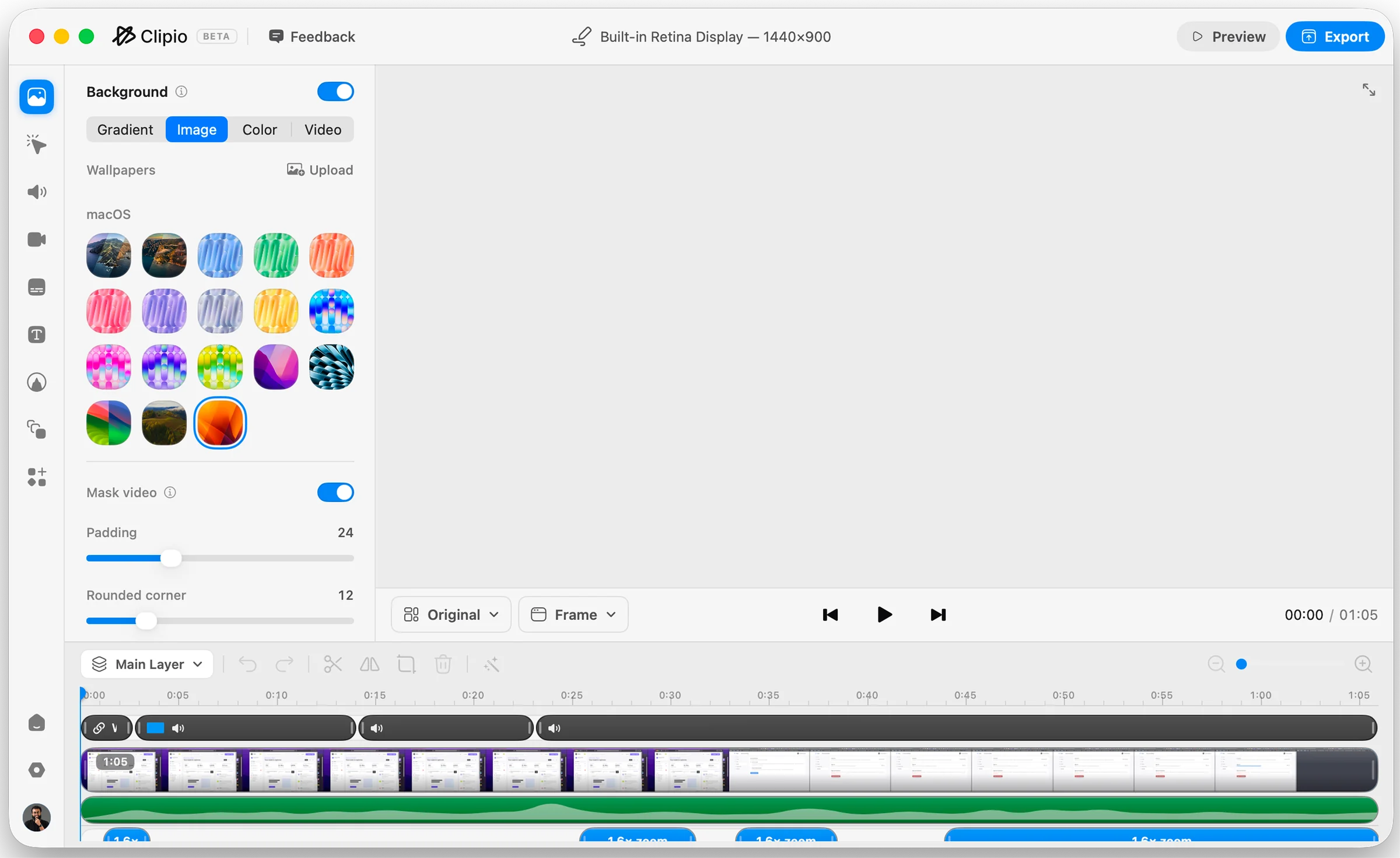
Zoom follows your clicks, the cursor glides instead of jittering, and captions write themselves on your device. Trim the idle parts, set a background, then export MP4 or GIF.

The Clipio video editor with a recording in the preview, the timeline below and design controls beside it.

Built differently. By design.

Three things that make a Clipio recording look edited, not just captured.

    • Follows your clicks and where the cursor rests
    • Eases in and out, never a hard cut
    • Tune scale, duration and sensitivity
    • Drag any keyframe to override it
    Explore auto zoom
    • Circle, 1:1 or 4:3, with rounded corners
    • Place it by hand or let Dynamic position it
    • Mirror, background blur, rim and shadow
    • Resize it without re-recording
    Explore the webcam
    • Arrows, boxes, text and pencil
    • Numbered steps that count themselves
    • Highlighter, spotlight and blur
    • Draw live while the recording runs
    Explore annotation

Pick a cursor. It’s yours right now.

The same skins Clipio draws in your recordings. Choose one and your pointer on this page turns into it.

Show cursor

Cursor style

Size50

Share in a click. Keep everything else.

Clipio uploads to a folder in your own Google Drive and copies the link. It never hosts your files, keeps every take in your library, and does everything else on your machine.

Built with care. Loved by early users.

Course makers, support teams and developers use Clipio every day. Here’s what they tell us.

  • The zoom is the whole thing. My course videos used to need an hour in Premiere just to make the UI readable. Now they don’t need Premiere at all.

    SA
    Sadia A.Instructional designer
  • Drawing on the screen mid-recording sounds like a small thing until you’ve recorded 40 bug repros. It cut my re-takes to about zero.

    JM
    Jonas M.Support lead
  • The auto-blur caught an API key in a screenshot I was two seconds from posting. That alone paid for the switch.

    TR
    Tariq R.Indie developer
  • Meet ClipioThe two-minute intro

Beta · not code-signed yet

Install Clipio on your Mac

Clipio 0.1.0 beta · macOS 15 or later · Apple silicon & Intel · 41 MB

This is a beta, and it isn’t signed by Apple yet. The app is safe, but macOS can’t verify it, so it blocks the first launch. Follow the steps below to install it — step 3 is the one-time confirmation.

  1. Download, then open Clipio-beta.dmg and drag Clipio onto Applications. Already have Clipio? Choose Replace — your library and settings stay.
  2. Open Clipio from Applications. When macOS says it can’t verify the app, click Done (not Move to Trash).
  3. Open System Settings → Privacy & Security, scroll to “Clipio” was blocked, click Open Anyway and enter your Mac password.
  4. Allow Screen Recording and Accessibility when Clipio asks, then reopen it.

Read the steps, then download.

Download for Mac
Check the file SHA‑256 0b7eb0cde90fa7ce64092a75aea129e7230a0a1e159ace2cb9ea1430d2a240cb
In Terminal: shasum -a 256 ~/Downloads/Clipio-beta.dmg

Beta · not code-signed yet

Install Clipio on Windows

Clipio 0.1.0 beta · Windows 10 or 11, 64-bit · 171 MB

This is a beta, and it isn’t code-signed yet. The app is safe, but Windows doesn’t recognise the publisher, so it shows a warning once. Follow the steps below to install it — step 2 gets you past the warning.

  1. Download, then open Clipio.exe from your Downloads.
  2. If “Windows protected your PC” appears, click More info, then Run anyway.
  3. Clipio installs for your account — no admin password needed — and opens by itself.

Read the steps, then download.

Download for Windows
Check the file SHA‑256 652536d219f059a96cd0b1bebeb53c0a9d13cfe280c3a7f14fcab2130b29dcb8
In PowerShell: Get-FileHash .\Clipio.exe