Free during early access

Screenshots, recordings
and GIFs. One app.

Three capture tools, each with a real editor behind it. Auto zoom that follows your clicks, annotation you can draw mid-recording, sensitive text blurred before you ever hit share.

No watermark · No time limit · Everything renders on your machine

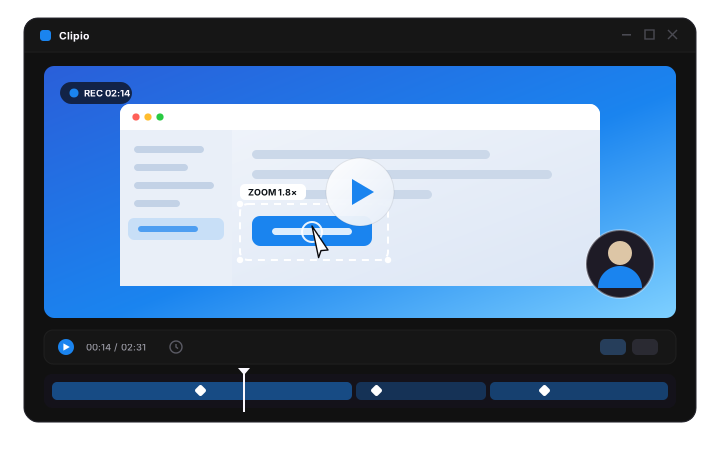
The Clipio editor with a recording on the timeline, an auto-zoom region around the cursor and zoom keyframes below.

Everything in one window

Screen recording Screenshots GIF capture Auto zoom Cursor tracking Annotation Sensitive-info blur Drive sharing Scrolling capture Captions

Three capture tools.
Three real editors.

Most tools give you a capture and a Save dialog. Clipio opens the thing you captured in an editor built for it — different panels for a still, a recording and a loop.

Grab an area, a window, or the whole page

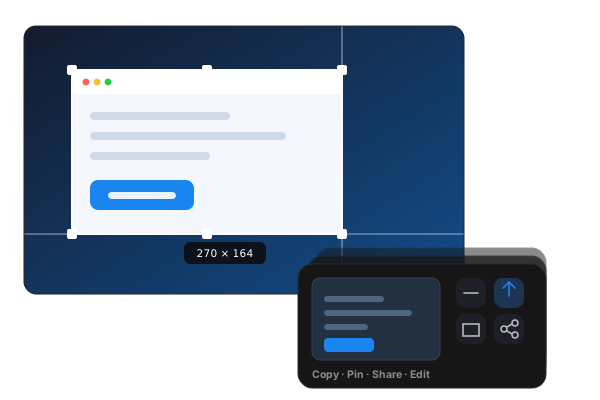
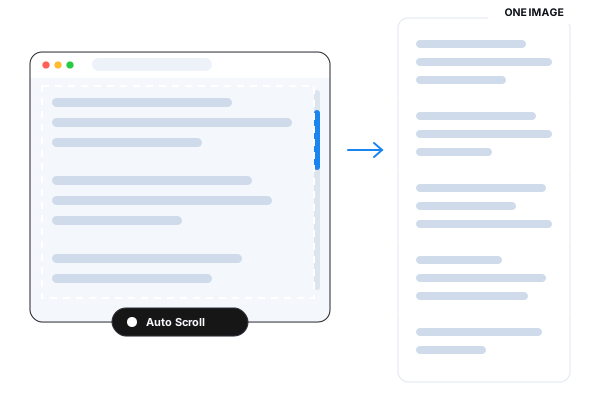
Drag a region with a live pixel readout, pick a window, or start scrolling and let Clipio stitch a whole page into one tall image. The shot lands in a quick card that stacks instead of interrupting you.

  • Area, window, display and scrolling capture
  • Pin a shot on top of everything, click-through
  • Pull selectable text out with on-device OCR

Screenshot editor

  • Annotations
  • Crop
  • Auto Frame
  • Background & design
  • Layers
  • Blur & redact
  • Numbered steps
An area selection with a live pixel readout, next to the quick card stack showing copy, pin, share and edit.

The parts that make it
look edited

None of this needs a second app, a render queue or an account. It is all in the window you just recorded in.

Auto zoom

Clipio watches your clicks and where the cursor lingers, then eases in on what you are actually pointing at and eases back out when you move on. Every keyframe stays draggable, so an automatic zoom is a starting point, not a verdict.

  • Click-triggered
  • Dwell-triggered
  • Spring easing
  • Editable keyframes

Cursor tracking

Drop a Tracking layer on the timeline and the frame follows your pointer for as long as that layer runs — a slow pan across a wide app instead of a hard cut. The cursor itself runs through a critically-damped spring, so it glides and bounces on click rather than jittering.

  • Spring smoothing
  • Click bounce
  • Cursor skins
  • Size & sway
  • Motion blur

Annotation, live or after

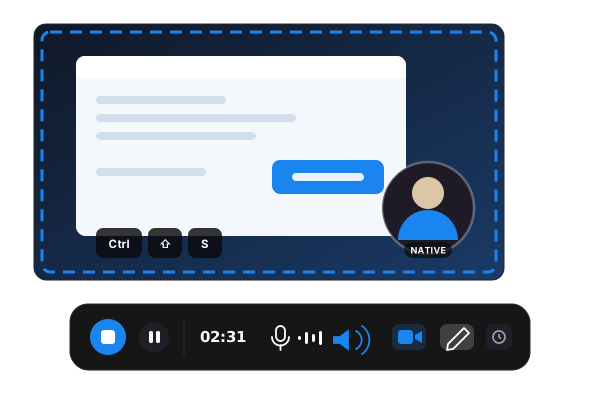
Ten tools that work on the live screen mid-recording, not only on a still afterwards. Circle the button as you say “click here” — every stroke stays editable once you stop.

  • Arrow
  • Box
  • Ellipse
  • Text
  • Pencil
  • Steps
  • Highlighter
  • Spotlight
  • Blur

Sensitive info, blurred automatically

On-device OCR reads the capture the moment it lands and pixelates what should not be in a screenshot — e-mail addresses, API keys, card numbers, password fields. It runs before you look at the shot, so the redaction is not something you can forget to do. Nothing is uploaded to find it.

4detectors, each toggleable

One-click Google Drive share

Hit Share on a quick card or a thumbnail and Clipio uploads to a “Clipio Shared” folder in your Drive, sets it to anyone-with-the-link, and copies that link to your clipboard. Clipio never hosts your files, and it can only ever see the ones it created.

How the permissions work

macOS and Windows

One app, built from one codebase, capturing natively on each platform — DXGI on Windows, AVFoundation on the Mac. The editor, the effects and the exports are identical either side.

Windows 10 & 11
macOS Beta
The one people notice first

Zoom that follows the work

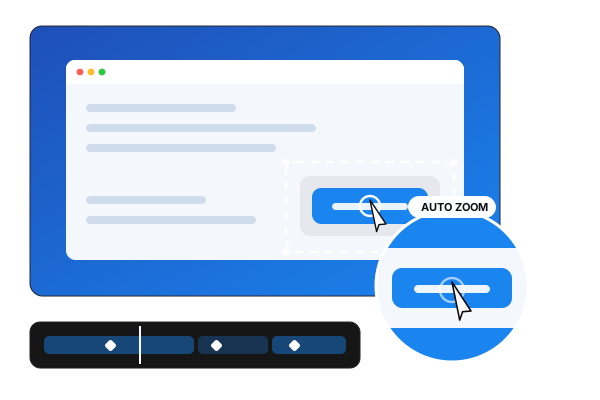
A full-screen recording of a dense app is unreadable at the size people actually watch it. Clipio eases in on the region you are working in and eases back out when you move on, so the viewer is always looking at the right part of the screen — without you cutting a single keyframe by hand.

  • Triggered by clicks and by where the cursor dwells
  • Spring easing in and out, never a hard cut
  • Scale, duration and sensitivity are all yours to tune
  • Drag any keyframe on the timeline to override it
A recording zooming into the region around a mouse click, with zoom keyframes on the timeline.
Draw while you record

Mark it up before you stop

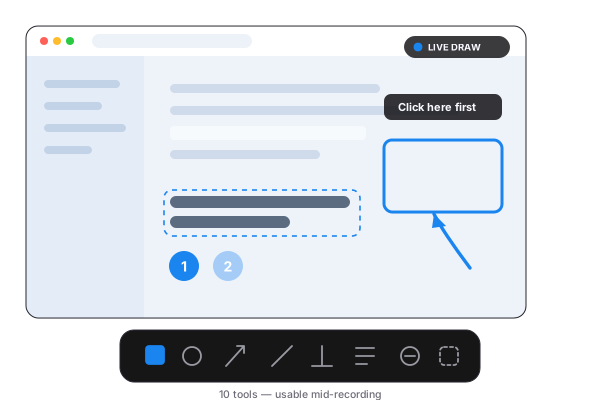
Annotation on a screenshot is table stakes. Clipio puts the same ten tools on the live screen while a recording is running — so you circle the button in the same second you say “click here”, instead of scrubbing back to find the moment later.

  • Arrow, box, ellipse, line, text and pencil
  • Numbered steps that count themselves
  • Highlighter, spotlight and blur redaction
  • Every stroke stays editable after you stop
A screen being annotated live with an arrow, a box, numbered steps, a highlighter stroke and a blurred region.

Motion that reads as designed

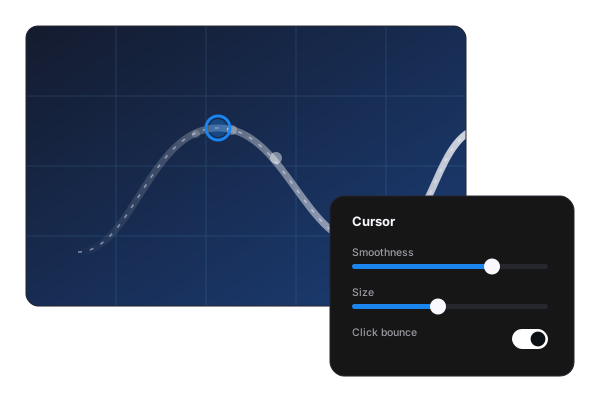
A raw mouse path is jittery, and jitter is what makes a tutorial look like a screen capture. Clipio runs the cursor through a critically-damped spring so it glides, leans into turns and bounces on click — and pairs it with zoom and tracking that ease rather than cut.

  • Spring smoothing with adjustable damping
  • Click bounce, ripple and motion blur
  • Cursor skins — dot, ring, or the real pointer
  • Size and sway independent of your OS setting
A smoothed cursor trail with a click ripple, beside the smoothness, size and bounce settings.

Background, captions, export

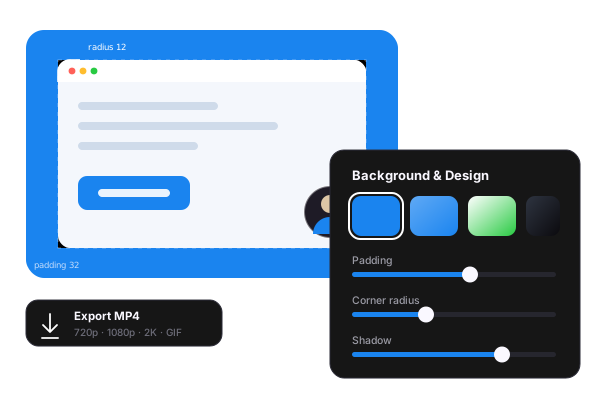
Drop the recording onto a gradient, a solid or your own image, then dial in padding, corner radius and aspect ratio until it looks like it came out of a design tool. Captions transcribe on-device after a one-time model download, and export is FFmpeg underneath — fast, and the file plays everywhere.

  • Backgrounds, frame presets, padding and radius
  • Offline captions you can edit, style and burn in
  • Auto-trim the idle stretches from mouse and audio silence
  • MP4 at 720p, 1080p or 2K — plus GIF
A recording placed on a background with padding and rounded corners, beside the design controls.

And the rest of it

The small things you only notice when they are missing.

Self-timer

Delay the capture so you can open the menu you actually wanted to show.

Multi-monitor

Any display, including mixed-DPI setups, captured at native scale.

Text recognition

Pull selectable text out of any screenshot with on-device OCR.

Scrolling capture

Manual or hands-free, stitched into one tall image — in any scrollable window.

Effect packs

Drop in a folder of cursor skins or wallpapers and Clipio picks it up.

Library

Every take kept with a thumbnail, reopenable with its effects intact.

Hardware capture

A native capture path and an FFmpeg export — no browser sandbox in the way.

Lives in the tray

Closing the window leaves it running, so a capture is always one hotkey away.

From early users

Mid-workflow, unprompted.

“The zoom is the whole thing. My course videos used to need an hour in Premiere just to make the UI readable. Now they don't need Premiere at all.”
Sadia A.Instructional designer
“Drawing on the screen mid-recording sounds like a small thing until you've recorded 40 bug repros. It cut my re-takes to about zero.”
Jonas M.Support lead
“The auto-blur caught an API key in a screenshot I was two seconds from posting. That alone paid for the switch.”
Tariq R.Indie developer

Questions, answered

Is Clipio free?

Yes — the early-access release is free and unrestricted. No watermark, no time limit. You will be asked to create a free account after a few exports, which is how we keep in touch with early users; paid tiers are a much later problem.

Does anything get uploaded?

Only when you press Share. Recording, editing, OCR, sensitive-info detection, captions and export all run on your machine. The one network path in the app is the Google Drive share, and it uploads a single file that you explicitly chose.

What does Clipio get access to in my Google Drive?

Only the files it creates. The connection asks for the drive.file scope, which means Clipio can see and manage its own uploads in the “Clipio Shared” folder and is blind to the rest of your Drive. Disconnect at any time from Settings → Integrations.

Is there a Mac version?

Yes — the same app, from the same codebase, capturing through AVFoundation instead of the Windows path. It is newer than the Windows build, so it ships marked beta while we work through real-hardware reports.

Can I still edit after I stop recording?

Everything stays editable. Zoom keyframes, tracking layers, cursor settings, annotations, captions and background styling all live on the timeline, and an old recording reopens from the library with its effects intact.

What do I need to run it?

Windows 10 or 11 64-bit, or a recent macOS on Apple silicon or Intel. Multi-monitor and mixed-DPI setups are supported. Captions need a one-time model download the first time you turn them on.

See all questions

Make your next capture
look edited.

Free during early access. About sixty seconds from download to your first auto zoom.

64-bit · Windows 10 & 11 · macOS on Apple silicon and Intel

Be the first to know

New features and releases. Nothing else.